SSAM plugin
|
Access to this plugin requires an additional license and/or depends on your EDGE license. Contact the SpaceSuite team for more information. The installation procedure is detailed in the Tools menu description. |
SSAM is used to perform a sector shielding analysis on the CAD model in EDGE. Using a ray-tracing technique, SSAM will perform, from a target point of view, an evaluation of the shielding thickness in all directions of a selected angular sector. The target can typically be a sensitive device on which the user wants to evaluate radiations effect. Taking into account the nature of attributed materials, the geometrical thickness is converted into aluminium effective one.
| In order to use SSAM, the geometry must be properly defined and materials assigned to it. A properly defined geometry does not contain overlaps. SSAM also check if there is no overlap in the geometry to avoid problems during the calculations. If it detects overlaps, the computation will stop with a message explaining it. |
Additionally, after computing the sector shielding analysis, SSAM is able to compute the dose received by the target. To do so, it is necessary to compute beforehand the dose versus depth of aluminum curve to provide to SSAM for the wanted environment. Then the equivalent thickness of Aluminium of each sphere sector and the dose versus depth tabulated function are used to compute the deposited dose using the formula below, where \(\Omega_i\) is the surface of the sphere sector \(i\), \(D(T_i)\) is the dose for the equivalent thickness of Aluminium of the sphere sector \(i\):
|
Limits of the sector shielding analysis approach
The sector shielding analysis approach implies the particle transport through the matter be averaged as straight lines from the sources to the target, without scattering, diffusion nor secondary particles emissions. This may constitute a severe assumption is some cases, like for electrons diffusion. Moreover, the position of the punctual target, as defined in SSAM, may deeply impact the effectively viewed shielding, i.e. effect of point-of-view, and the total cumulated dose of a larger sensitive component, with a spatial extension, be significantly differ. For these reasons, results computed with a sector shielding analysis should be considered with care and remain of the full responsibility of the end user and his expertise. |
Two modes of operation exist in SSAM:
- Single mode
-
the sector shielding analysis is performed at one location, and can optionaly be followed by a dose computation. The sector shielding analysis results can be viewed in different manners (such as histograms or 3D represention). This mode is available via the btn:[SSAM [Sector Shielding Analysis Module\]] entry.
- Multi-position dose mode
-
a complete dose analysis is performed at several locations inside the geometry. Only dose results are provided with this mode. It is available via the btn:[SSAM Multi-Position Dose].
SSAM Inputs
To compute the sector shielding analysis SSAM needs various parameters in addition to the CAD definition. These parameters are quite the same whatever the mode, there are then presented here. Specific information for parameters for each mode are provided in the sub-sections.
General parameters
- Position
-
It is necessary to select a position where to perform the sector shielding analysis. It is necessary to provide the \$x\$, \$y\$, \$z\$ and length unit for the position. An additional function, available with the
 button, enables to select the position with the centre of one of the shape of the geometry.
 - Sphere sectors
-
It is needed to provide a number of sphere sectors to divide the space in theta(\$θ\$) and phi(\$φ\$) directions — with theta varying between \$0\$ and \$2π\$ and phi between \$0\$ and \$π\$.
- Emitted rays
-
The total number of rays to launch for the sector shielding analysis.
From the defined position, the selected number of rays is launched in all directions (using an isotropic distribution). SSAM computes the distance in each material density type crossed by the ray and calculates the equivalent thickness of Aluminium defined by a density of \$2.699 g/cm^3\$.
All these results are then summarised for each sphere sector computing the minimal, mean and maximal of the equivalent thickness of Aluminium.
Dose parameters
As noted before, to perform a dose computation, users must beforehand compute the tabulated function defining the evolution of the cumulative dose versus the depth of a material, using external software, models or experimental data for the wanted environment. The user may, for instance, use the Shildose2 model, as provided in the frame of the ESA/BIRA/Spenvis online application.
Then it is possible to set the needed parameters for dose computation:
- Dose versus depth curve
-
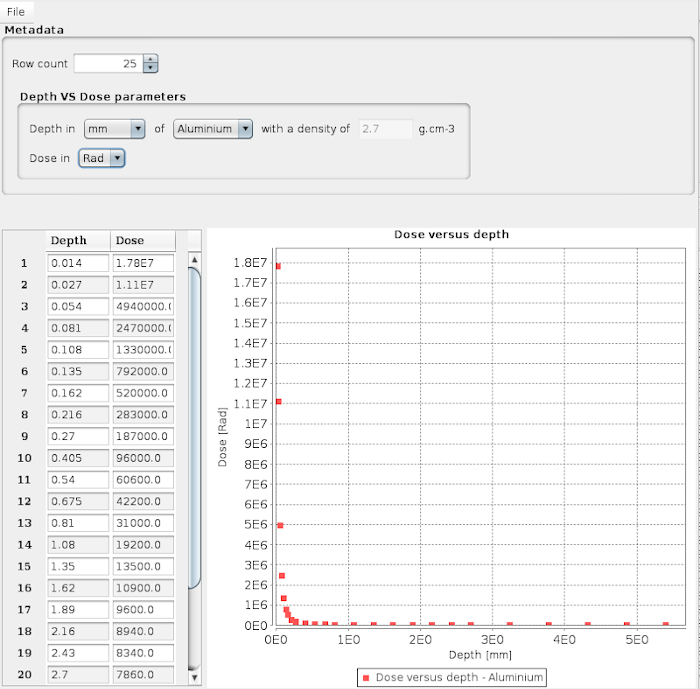
It is possible to set it manually directly in the editor or to load a CSV file with two columns separated by a comma (to do so, go to menu:File[Load]). The first column defines the depth and the second one the dose. An example of such file is provided in the CSV file for dose example annex and also in the
datadirectory of EDGE. - Depth unit
-
The depth value (first column) unit must be set between \$g/cm²\$ or millimetre of a material with a specific density for the depth. If the selected unit is \$g/cm²\$, then it is not necessary to set the density because the results do not depend on the density of the material.
- Dose unit
-
The dose value (second column) must be set between \$Gray\$ or \$Rad\$.
As shown below, the selected parameters are dynamically interpreted to display on the right part of the editor the points of the tabulated function.
SSAM Single mode
In single mode, at startup it is needed to provide one position, the number of sectors and rays as presented in previous section. Then click on btn:[Play] button to launch SSAM.
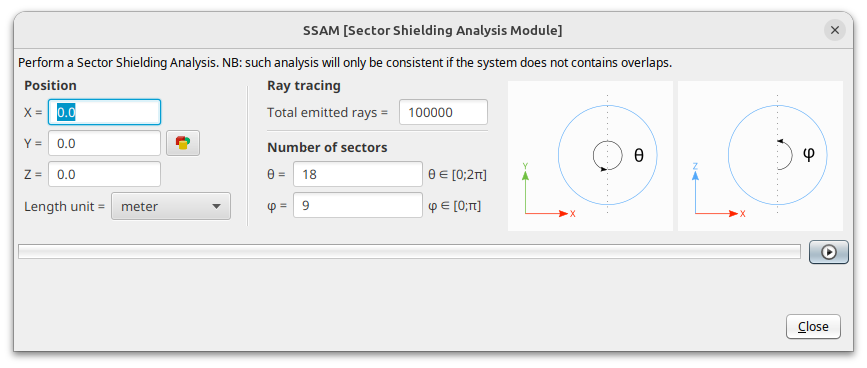
SSAM results are displayed after all the rays are launched.
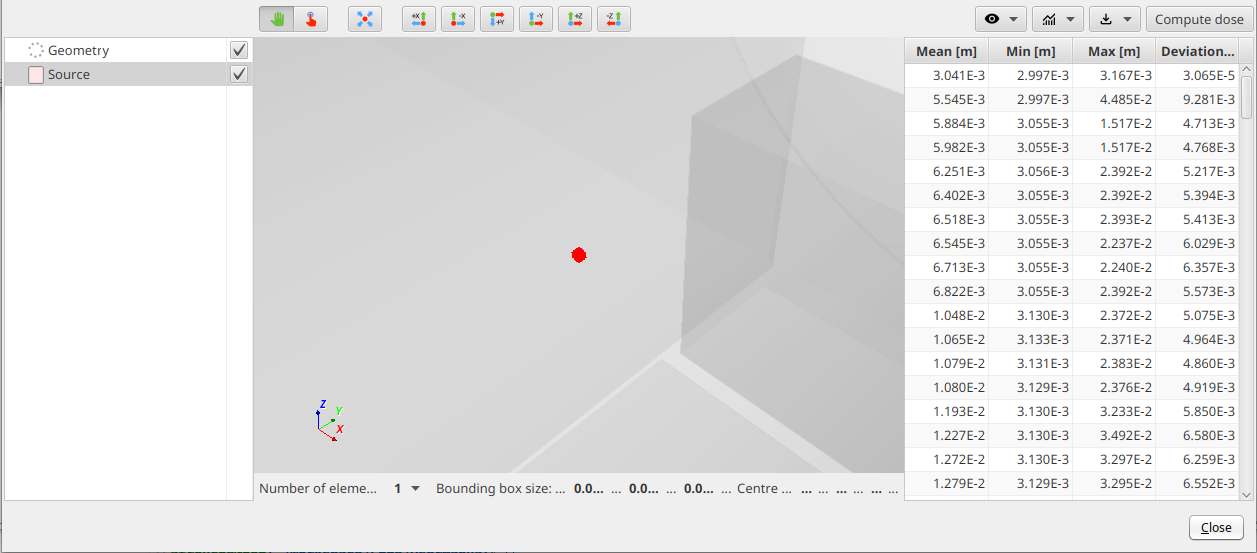
There are several areas to display SSAM results as illustrated below.
- Left
-
Lists the 3D results elements and allow to change their visibility, transparency and colours by clicking on the corresponding checkboxes and coloured buttons. By default, the modelling geometry is displayed in transparency and in black colour. The position of the target is represented by a red sphere. Please note, in some cases, this sphere can be small compared to the global geometry size and a zooming might be needed to see it.
- Centre
-
3D view of the different results computed with SSAM.
- Right
-
Table with 4 columns and several rows. Each row is the result of a sphere sector defined by a division in theta and phi directions described by the input parameters. The columns are respectively the mean, the minimum, the maximum and the standard deviation of the mean values of the equivalent thickness of aluminium in this sphere sector. All these values are expressed in metre.
The standard deviation is computed with the formula below, where \(nb_{rays}\) is number of rays launched in the sphere sector, \(t_{i}\) is the equivalent thickness of the ray \(i\) and \(t_{mean}\) the mean of all equivalent thicknesses in the sphere sectors:
- Top right
-
The contextual menu bar provides several possibilities to display the selected results in the 3D view or as plots, export them into CSV format files or to compute the dose received by the target. More details on these actions are available in the next section.
3D results
The  button menu allow to display results in the 3D view. The selected result appears in the 3D view and is listed in the control panel.
The following 3D representations are available:
-
The minimum, mean or maximum of the equivalent aluminium thickness for each sphere sector. More information about each sphere sector can be obtained by clicking on each sphere sector item in the list of 3D items;
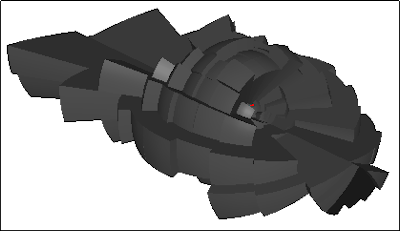 Figure 4. 3D sphere sectors results or "hedgehog view"
 -
The average sphere considering the mean of the equivalent aluminium thickness for all rays launched by SSAM. The details regarding this sphere, like the diameter can be displayed by clicking on the item in the list of 3D items.
The information bar at the bottom of the 3D view gives the size of the selected element bounding box enabling to quickly access the size of the sphere;
-
The number of interceptions for each face of the geometry. This 3D result can be used to check if enough rays have been launched to provide a statistic good enough: if a face has zero interceptions, it indicates that not enough rays has been launched to intercept this face.
When selecting this results in the list of 3D items, a scalar bar appears helping assess the value represented by each colour;
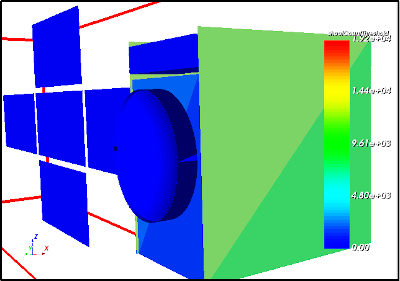 Figure 5. Number of intercepting rays for each face
 -
The minimum, mean or maximum hollow sphere sectors of equivalent aluminium thickness. Users must set the inner radius of the hollow sphere, and the space between each sphere sector. The details of each hollow sphere sector are available by clicking on each sphere sector item in the list of 3D results.
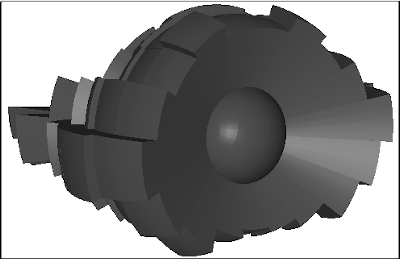 Figure 6. 3D hollow sphere sectors results
 -
A coloured sphere where each colour represents the value of the equivalent thickness of Aluminium in metre.
When selecting this results in the list of 3D items, a scalar bar appears helping assess the value represented by each colour.
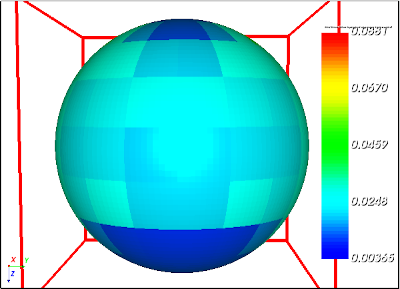 Figure 7. Sphere sector aluminium equivalent thickness mapped on a coloured sphere
Plot results
The  button menu enables to display plots of meaningful results into a pop-up window.
The following results are available:
-
\(y = f(x)\) chart type where the minimum, the mean and the maximum of the equivalent thickness of Aluminium in metre for each sphere sector is displayed.
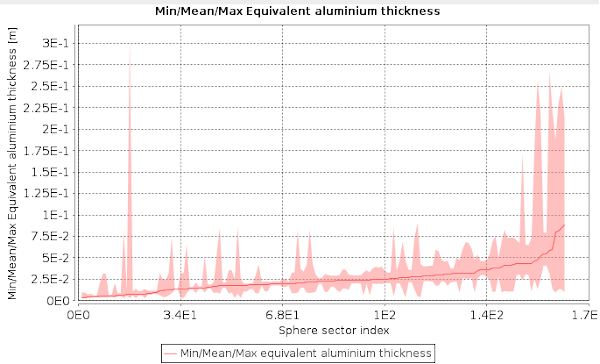 Figure 8. Minimum, mean and maximum equivalent thickness of Aluminium in metre for each sphere sector
 -
\(y = f(x)\) chart type with the mean of the equivalent thickness of Aluminium in metre and its standard deviation are displayed for each sphere sector.
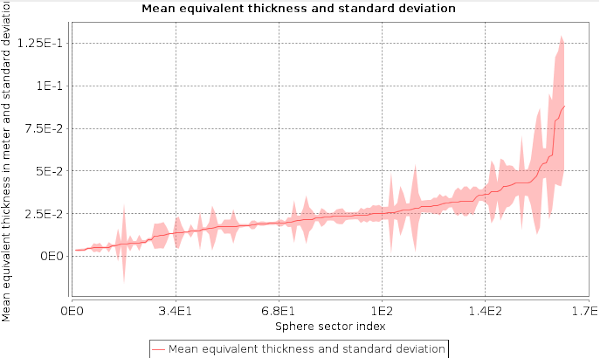 Figure 9. The mean of the equivalent thickness of Aluminium and its standard deviation in metre for each sphere sector
 -
A 2D Map showing the angular repartition of the equivalent thickness of Aluminium for each sphere sector.
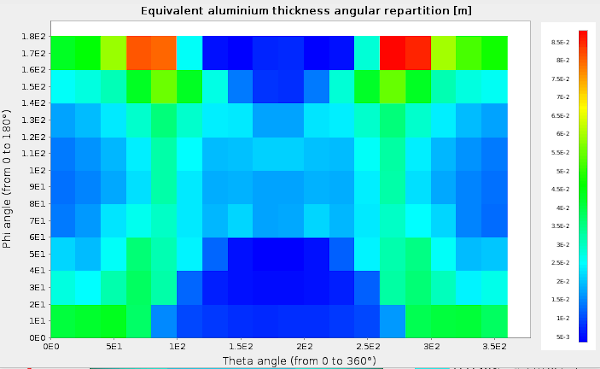 Figure 10. Angular repartition of the equivalent thickness of aluminium in metre for each sphere sector
Export options
The  button menu enables to save the following results on the disk:
-
The equivalent thicknesses of Aluminium in metre to a CSV file;
-
An equivalent sphere with a radius equal to the average of the equivalent thicknesses of Aluminium of all rays used for SSAM.
This sphere is exported to a GDML file;
-
The number of rays which intercepted each face of the geometry in a VTK file;
-
The hollow sphere sectors using the minimum, the mean or the maximum of the equivalent thickness of Aluminium of all sphere sectors.
The hollow sphere sectors are exported to a GDML file.
Users must set the radius of the hollow sphere, and the space between each sphere sector to avoid cross contacts and overlapping between sectors to respect GEANT4 constraints.
Dose computation
The  button enables to compute the cumulative dose based on the previous computed aluminium equivalent thicknesses.
When clicking on it, the Dose parameters window appear. When the inputs parameters for the dose computation are set, users can click on the button to launch the computation.
Then a new popup appears with the results of the cumulative dose. The results are computed considering the minimum, the mean and the maximum of the equivalent thickness of Aluminium for all sphere sectors.
Users can choose to save these results in a dedicated file by clicking on the  button.
SSAM Multi-position dose
In multi-position mode, at startup it is needed to provide the positions, the number of sectors and rays as presented in previous section and the dose-depth data.
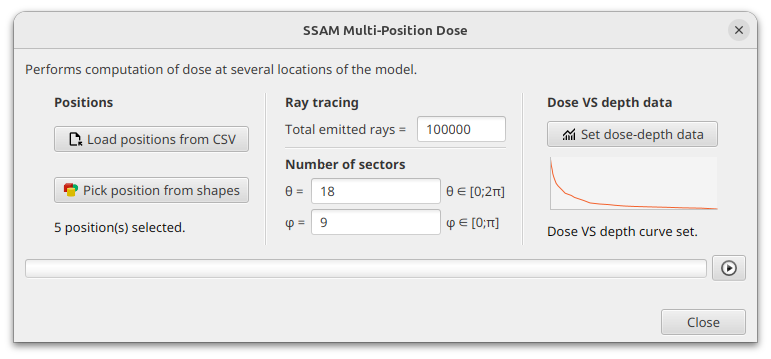
To set the positions, there are two possibilities:
- Load positions from CSV
-
The positions where to compute the dose are loaded from a given CSV file with three columns for \$x\$, \$y\$, \$z\$. When clicking the button, a small pop-up as shown below appear to select the file, the element separator inside the CSV file as well as the position unit.
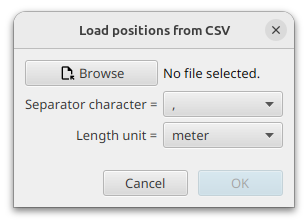 Figure 12. Load from CSV pop-up
 - Pick positions from shapes
-
As for the single mode, it is possible to set the positions by selecting shapes in the geometry. Their centre is then used to set the positions.
Then click on btn:[Play] button to launch SSAM for each selected position. If numerous positions are setup, the computation can take some time to finalise.
All dose results are displayed after all the rays are launched for each position.
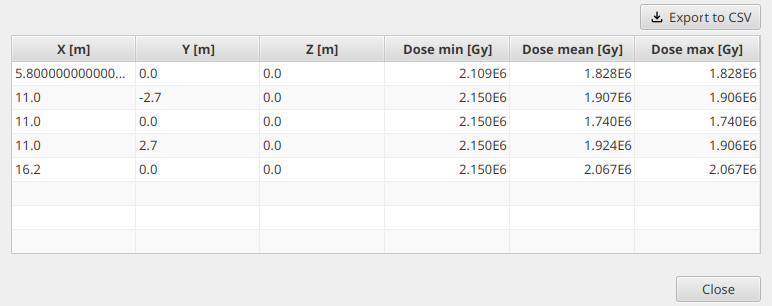
The first three columns display the selected position \$x\$, \$y\$ and \$z\$ components in metre. The last three columns present the dose results with the minimum, mean and maximum dose for the selected position.
As for single position, it is possible to export the results to a CSV file by clicking on the btn:[Export to CSV].