DeCADe plugin
|
Access to this plugin requires an additional licence and/or depends on your EDGE licence. Contact the SpaceSuite team for more information. The installation procedure is detailed in the Tools menu description. |
DeCADE, for Detesselator and Extended CAD importer, is an EDGE-plug-in providing extended STEP-AP format capabilities and a set of geometry simplification and clean-up features to adapt the imported geometry to radiations analysis.
Needed system configuration
The Smart STEP-AP importer needs a special configuration to work, otherwise you will see the following error message appear at startup:
Environment variable "MMGT_OPT" not set to 0, unable to load OpenCascade.
Check application user-manual for more information.
The MMGT_OPT environment variable controls memory management settings.
You can configure it in two ways:
-
System-wide setup (always active).
-
Launcher script (only active when starting the application through a helper script).
System-wide Setup
Linux (bash, zsh, etc.)
-
Open a terminal.
-
Edit your shell configuration file (
~/.bashrcor~/.zshrc):nano ~/.bashrc -
Add this line at the end:
export MMGT_OPT=0 -
Apply changes with:
source ~/.bashrc
Launcher Script Setup (per-application only)
If you want to keep environment changes local to your application, use one of the following scripts.
Linux
Create a script bin/launch.sh:
#!/bin/sh
export MMGT_OPT=0
./edge "$@"
Make it executable:
chmod +x launch.shRun with:
./launch.shmacOS
Create launch.command:
#!/bin/zsh
export MMGT_OPT=0
./edge "$@"
Make executable:
chmod +x launch.commandDouble-click launch.command in Finder, or run it from Terminal.
Windows
Batch (.bat)
Create launch.bat in the same folder as application.exe:
@echo off
set MMGT_OPT=0
edge.exe %*
Start the app by double-clicking launch.bat.
PowerShell (.ps1)
Create launch.ps1 in the same folder as application.exe:
$env:MMGT_OPT = "0"
Start-Process -FilePath ".\edge.exe" -ArgumentList $args -Wait
Run with:
.\launch.ps1If you see a script execution policy error, you may need to enable script execution in PowerShell by running:
Set-ExecutionPolicy -Scope CurrentUser -ExecutionPolicy RemoteSignedSmart STEP-AP importer
As any importer, the Smart STEP-AP importer is available in the menu or inside the "Add new shape" dialogue.
The extended STEP-AP importer allows to:
-
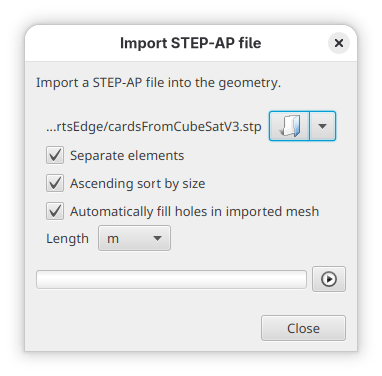
Import STEP element by element (i.e. shell by shell) when the Separate elements check-box is selected
-
Sort elements by size when imported in EDGE to facilitate the removal of small elements by checking the Ascending sort by size check-box.
-
Fill automatically any hole that might be present inside the imported tesselated element by the checking the Automatically fill holes in imported mesh check-box.
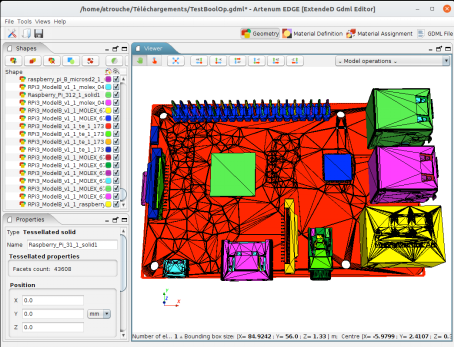
The screenshot below presents an example of imported STEP-AP file (a Raspberry Pi card) inside EDGE using the DeCADe smart importer.
Detessellation operation
After importing a STEP-AP, or any other meshed/b-rep based format, the geometry is made of tessellated elements that cannot be edited and induce more CPU cost when performing Geant4 analysis.
DeCADe offers a function called "Detessellator" that enables to convert
tessellated elements into CSG primitives fully compatible with GDML.
To use this function, after selecting the elements who want to
detessellate, click on the  button in the toolbar on top of the list of shapes.
A new dialogue appears to select a few options:
- Separate non-continuous shapes
-
This function will detect in the tessellated element if there are non-continuous surfaces that represents two different shapes. Then it will create a shape per different continuous surface. If not selected, the tessellated element is considered as only one element. It is recommended to keep this option active.
- Automatic shape detection
-
The algorithm detects automatically which primitive is closer to the selected element between Boxes, Cones and Spheres. If not selected, you must choose by which primitive the tessellated shape will be approximated. The available shapes are then Box, Cone, Cylinder, Ellipsoid and Sphere.
The screenshot below presents an example of detessellation, here on an embedded computer mother board from an initial STEP-AP file in a cubesat. The left view shows the initial import as triangulated surfaces. The right-side view shows the equivalent pure CSG / GDML model. All components have been automatically detected and converted by the detesselator.
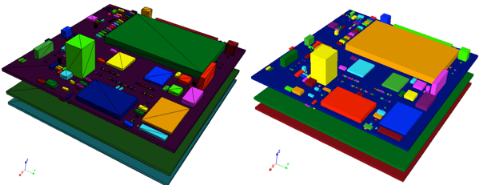
In most of the usual cases, canonical shapes can be automatically detected, sized and located or, for the most complex cases, can manually be pre-identified by the user through the GUI.