Main Window
The graphical user interface of EDGE is intuitive and based on the concept of perspectives, where the modelled system can be viewed and handled from different approach or points of view, like the edition of the geometrical model, the definition of material properties or the assignment of these materials to their correct geometric shape.
The top window elements of the graphical interface are common for all perspectives:
-
Main Menu (at the top) corresponds to main control menu of the application.
-
General Toolbar (just below) presents shortcut buttons to access preferences and open/save a file (on the left) and also allows switching from a perspective to another (on the right). This toolbar also grants access to the preferences panel.

The various perspectives are presented in details in next sections:
Main menu
The main menu at the top of the application enables to access various general elements.
File menu
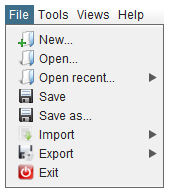
The File menu allows opening and saving GDML files and also various import and export options. An option also permits opening recent files. Finally the exit option enables leaving the application.
Please note that EDGE can only load one file at a time. When opening a GDML file, if there are unsaved modifications, the application will propose to save this work before replacing it by the new opened file.
In its trial version, EDGE does not allow exporting or saving to GDML.
|
EDGE tries to load all files, even if there are inconsistencies. For example, if a file contains two solids with the same name, EDGE will only consider the last element with this name and inform about this issue and the chosen resolution. |
Tools menu
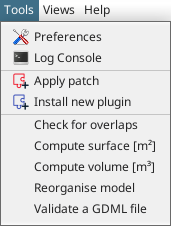
The Tools menu offers various tools and shortcuts. From here, you can access the preferences panel presented in preferences. The console log is displaying various messages from the application such as errors and warnings.
With this menu, it is also possible to apply corrective patch to EDGE or install new feature plugin. To do so, click on the correct item and a file choose will appear and asks where the patch/plugin is located. Once installed, it is recommended to restart the application.
This menu also offers access to various tools and model computation operations which are described in more details in model operations.
Preferences
The Preferences dialog box allows the setting of the applications options.
At the first launch of the application, the Preferences dialog box is shown and enables the user to change the default parameters right away.
Otherwise, it is available:
-
In menu
-
With the
 button on the General toolbar
|
For each option, a Reset to default button allows switching back to the initial value. |
3D viewer preferences
The first tab display options about the 3D viewer of the application:
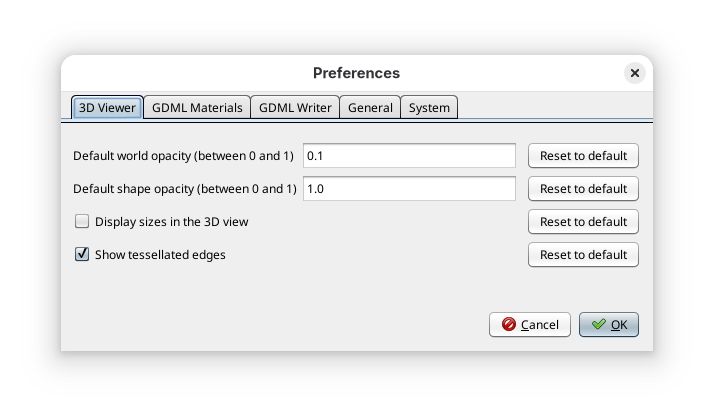
- Default world opacity
-
Sets the default opacity used when creating the world shape. Indeed, a colour is automatically chosen for every new shape and this setting will choose the opacity for this colour. The value 0.0 is fully transparent while the value 1.0 is fully opaque. Please note that this setting will not change the opacity of the world already displayed in the 3D view.
- Default shape opacity
-
Sets the default opacity used when adding a new shape that is not the World shape to the 3D view. For more details, see the previous preference about the world shape.
- Display sizes in the 3D view
-
This option activates an additional widget when selecting elements in the 3D view: the size (in meters) are directly shown. It is disabled by default for better clarity in the 3D view.
- Show tessellated edges
-
This option activates the highlight of the edges of tessellated shapes inside the 3D view.
GDML default material preferences
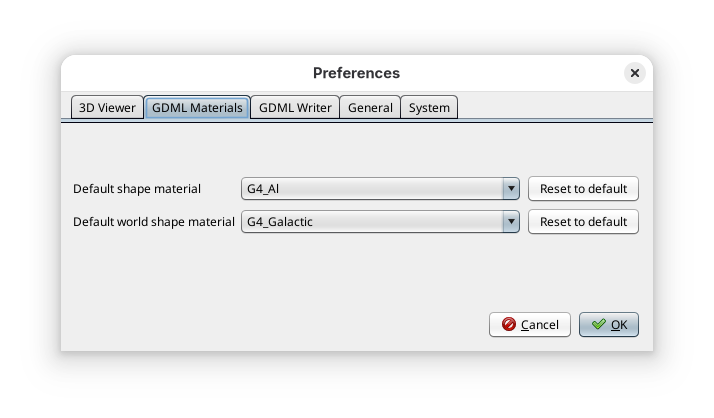
The second tab — shown above — offers options concerning the default GDML materials used in the application. Indeed, when a new shape is created in EDGE, a default material is assigned to it that can be changed later on in the Material Assignment perspective. Here, it is possible to select which material will be assigned to the world element and to other elements. The selection can be performed from within the Geant4 default materials list.
GDML writer preferences
The third tab — shown below — sets parameters for the GDML writer.
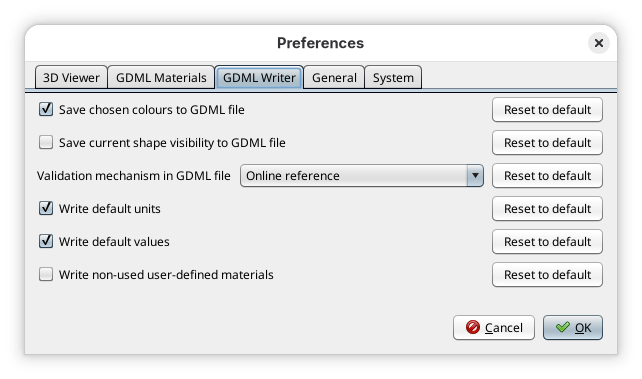
- Save chosen colours to GDML file
-
If this option is selected, the colours chosen in the Geometry panel will be saved to the GDML file using the
<auxiliary>tag, and then when loading the file the colours will be the same. Be careful, the content of the<auxiliary>tag is not interpreted by the Geant4 numerical kernel. This tag is usually properly treated by the client code as explained in the GDML user manual. - Save current shape visibility to GDML file
-
If this option is selected, the
<auxiliary>tag will be used in the GDML file to save whether each shape is visible in the 3D viewer. Be careful, the content of the<auxiliary>tag is not interpreted by the Geant4 numerical kernel, this visibility feature is only for visualisation purpose in EDGE. - Validation mechanism in GDML file
-
Choose the reference to the GDML file validator (.xsd) defined in the GDML file.
- online
-
The validation process requires an internet connection when the file is loaded in other tools.
- local
-
The validation is made locally with a validator file embedded on the local computer. The saved GDML file can only be used on this computer as long as the EDGE application is not moved.
- none
-
No reference to a GDML file validator is written, then no validation will be processed when the GDML file will be used by other tools.
- Write default units
-
If this option is selected, the units will always be specified inside the GDML file even if they equal to the GDML default units (milimeters for lengths and radians for angles);
- Write default values
-
If this option is selected, the values for optional fields will be written even if they equal to the default value — it is the case for example for the position and orientation (0 is the default value);
- Write non-used user-defined materials
-
If this option is selected and that the user has defined materials which are not assigned to a geometric shape, those materials will be stored in the GDML file anyway;
General preferences
The fourth tab offers more general usability preferences, as shown below.
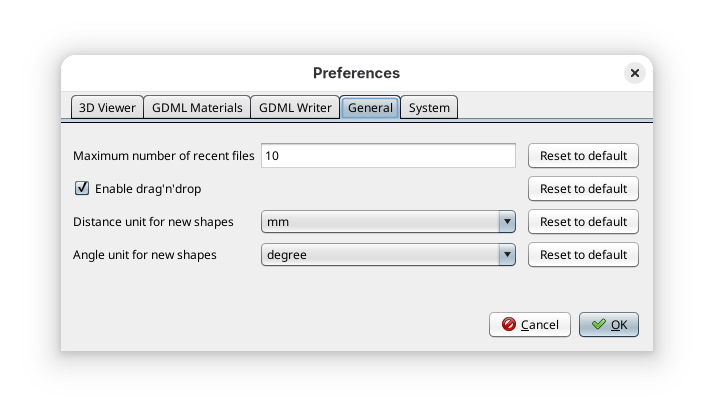
- Maximum number of recent files
-
this option controls the number of recent files stored by EDGE and accessible in the menu.
- Enable drag’n’drop
-
Enables the possibility to move the elements in the Shapes tree using drag and drop gesture with the mouse. It facilitates the modification of the hierarchy. To avoid unwanted modifications, this option is disabled by default.
- Distance unit for new shapes
-
this setting enables to define the default distance unit when adding a new shape (for distance values and the position). It avoids to change the unit each time you create a new shape.
- Angle unit for new shapes
-
same effect as the previous one but applies to angle units (for angles values and orientation).
System preferences
The last tab sets preferences for the system, as shown below.
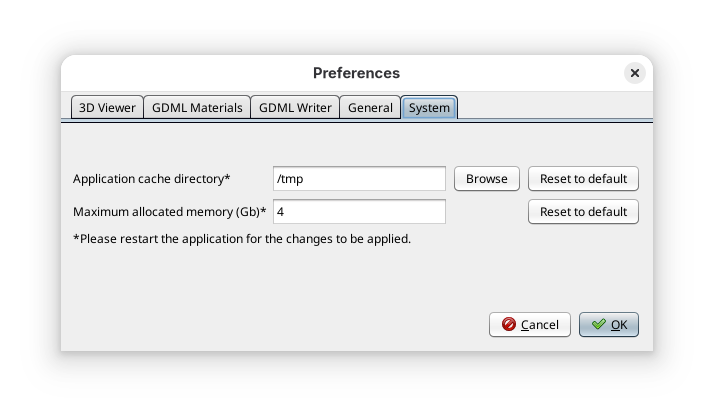
- Application cache directory
-
By clicking on the “Browse” button, the user can choose the path where the application stores its temporary files. It may be useful to change this setting if you do not have write access to your temporary folder (by default EDGE uses the operating system default temporary folder).
- Maximum allocated memory
-
The user can choose the value (in Gb) of the available memory for EDGE. It can be useful to increase this value when loading big files, without exceeding the system maximum capabilities.