Material assignment
The aim of this perspective is to apply the materials defined in the material definition perspective to the geometry defined in the geometry edition perspective. Thus, this view only makes sense when at least one shape has been defined in the geometry perspective.
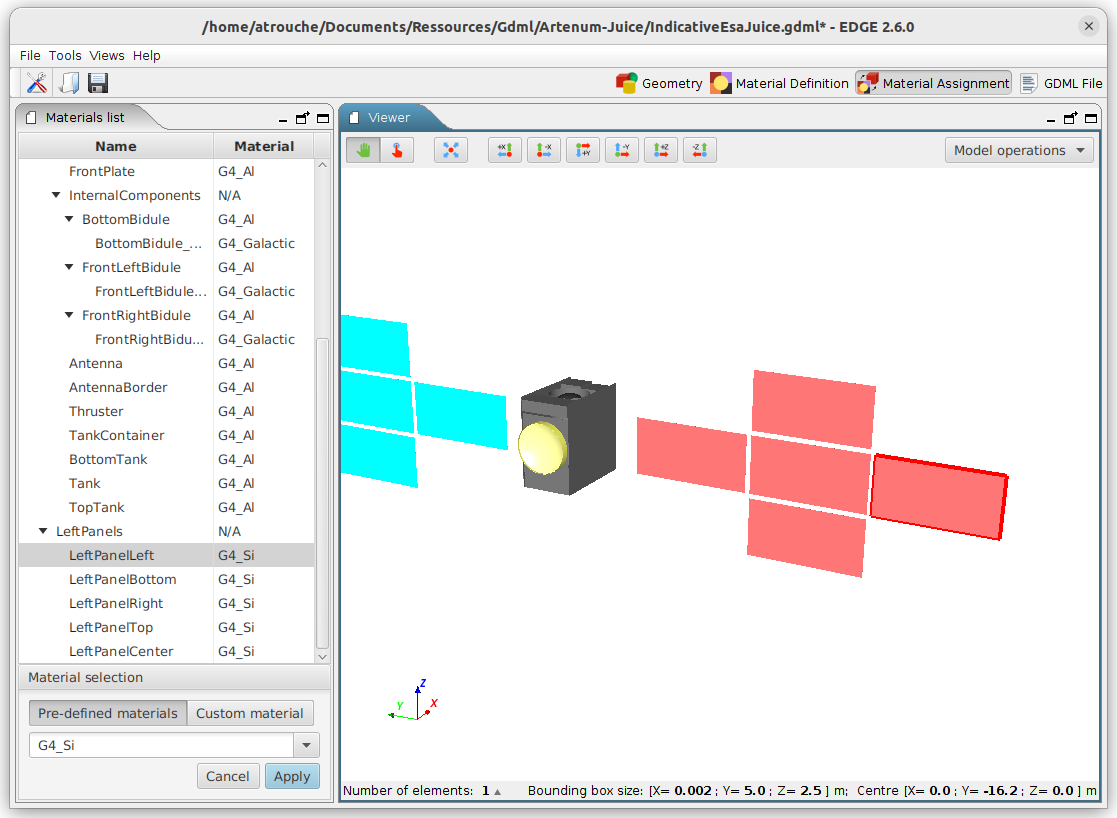
The materials assignment perspective has the same 3D view as the geometry one.
-
Top left: Material assignment tree, tree of the geometric shapes and the currently applied material;
-
Bottom left: Material assignment selector, panel to select the material for the currently selected shape(s);
-
Right: 3D viewer, 3D viewer highlighting the currently selected shape(s).
Materials assignment tree
This panel contains a tree-table with two columns.
The first column (on the left) shows the tree of geometry shapes created in the Geometry edition perspective.
The second column (on the right) indicates the material attributed to each corresponding geometry shape. By double-clicking on the right column, it is possible to directly change material assignment without using the material selection panel.
|
Default materials
By default, the Geant4 material 'G4_Galactic' (i.e. space environment) is attributed to the geometry shape representing the world. All other geometry shapes created are, by default, composed of 'G4_Aluminium'. This behaviour can be changed in the Preferences. |
Material selection
The Material selection panel allows the user to select the material to attribute to a geometry shape, defined in the Geometry edition perspective.
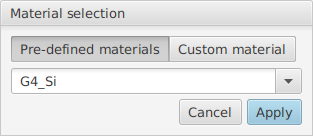
When at least one geometry shape is selected in the Materials assignment tree, the panel displays several choices of material for the user to choose in the list below:
- Pre-defined materials:
-
Predefined Geant4 materials that can be directly used to assign the material.
- Custom materials:
-
This option is only available when there is at least one custom material defined in the material definition perspective.
The choice updates the content of the drop-down list with either the pre-defined materials or the custom ones.
| It is possible to filter the drop-down list by typing letters on the keyboard. For instance, typing a+l+u will filter the list with materials having "alu" in the name (not taking into account the case). |
When the chosen material is selected in the drop-down list, the modification must be saved by clicking on the Apply button. The Cancel button reset the material assigment to the initial value.