Material definition
The aim of this perspective is to define materials that will be attributed later to a geometric shape.
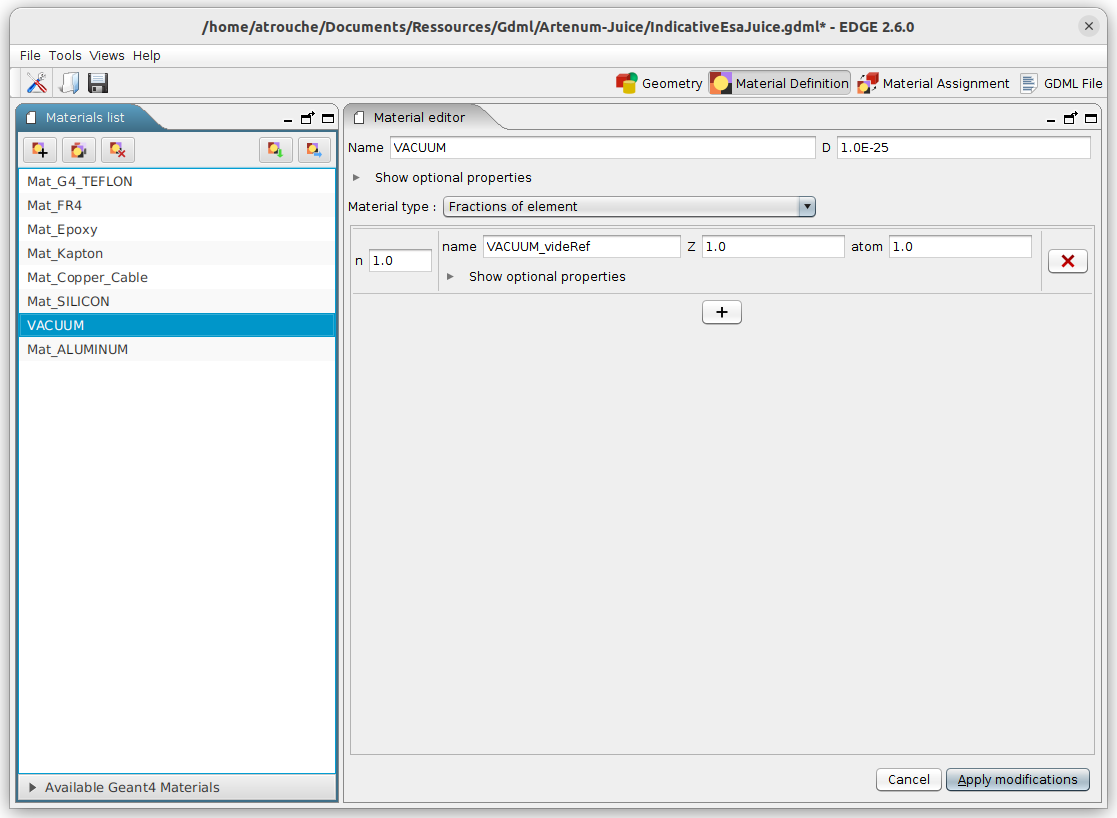
The Material definition perspective has no 3D view but is composed of three main panels, as shown below.
-
Top left: Materials list, the list of user-defined materials;
-
Bottom left (collapsed by default): Available Geant4 Materials, the list of available Geant4 default materials;
-
Right: Material editor, panel to edit the currently selected material.
About GDML materials
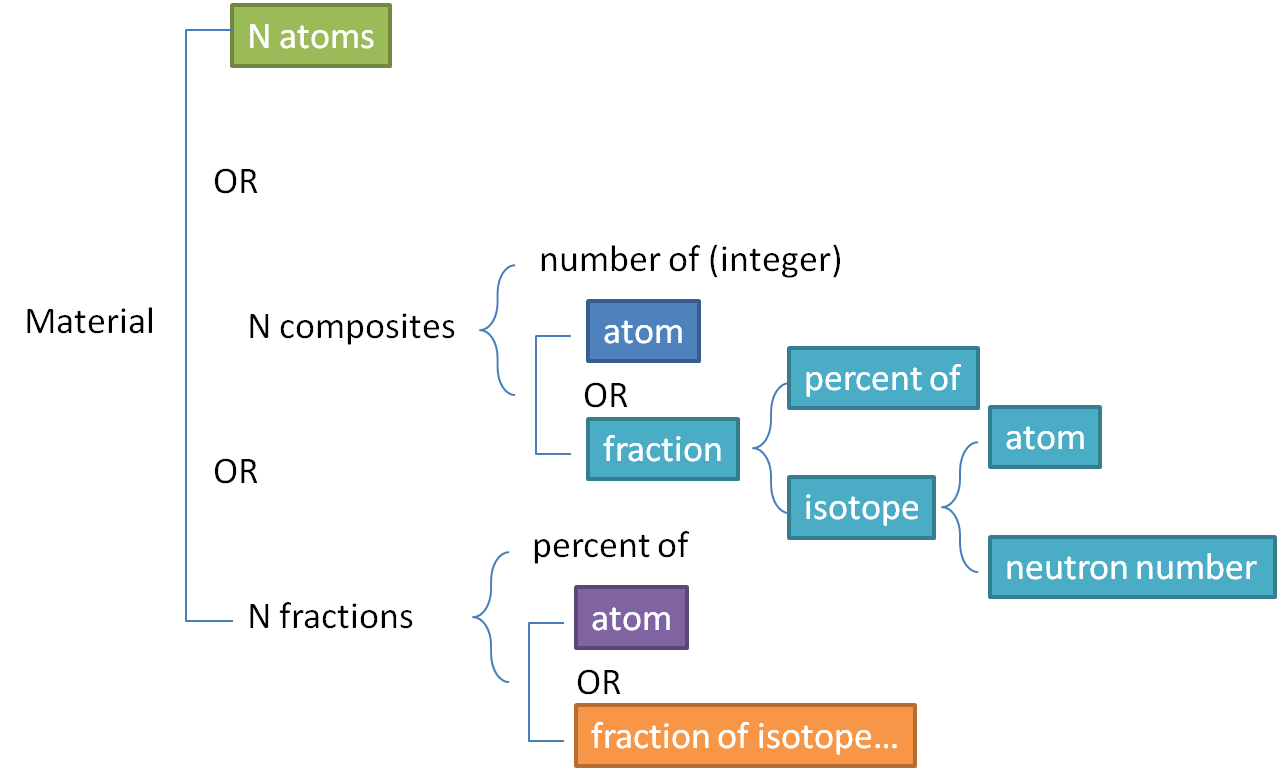
In GDML format, materials are defined by their isotopic and stoichiometry compositions.
Materials can be defined by a single “atom”, a composition of elements or fractions of elements. These elements can be simple “atom” or represent an isotropic distribution.
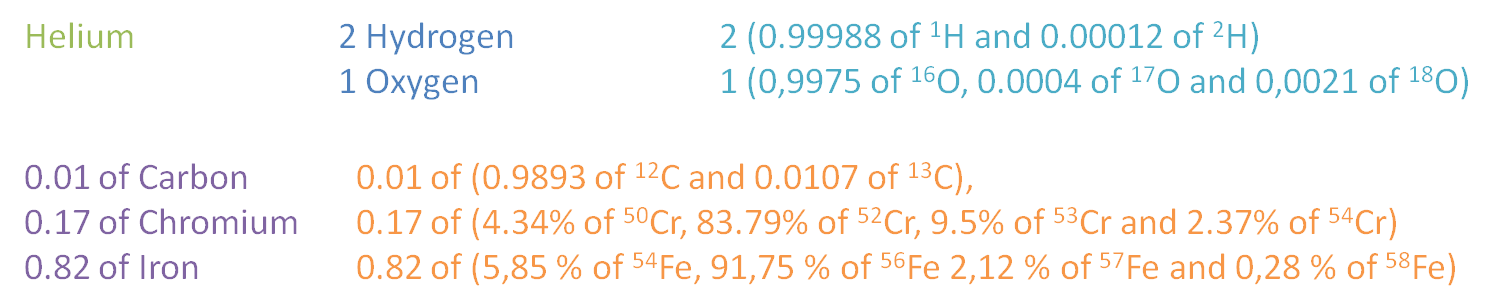
The schema below presents different examples of material defined using the GDML formalism.
Materials list
Creating a material is performed by clicking on the  button.
|
Saving custom materials
A new material which is not attributed to a geometrical shape in the Materials assignment perspective will not be saved inside the generated In order to save materials which are not attributed inside the .gdml file, it is necessary to activate the "write non-used user-defined materials" preference which is disabled by default. |
In order to edit a material, a click on an element in the list updates the material editor with the current material where it can be edited.
It is possible to duplicate materials by selecting them in the list and clicking on the  button. The new materials are added at the end of the materials list and their names are incremented in order to not confuse them with the initial materials.
Deleting a selected material is performed by clicking on the  button.
By clicking on the  button, it is possible to import materials from another GDML file or from a GDML materials XML file. In the case of a GDML file, this mechanism will import all materials written inside the GDML file.
Finally, clicking on the  button exports the materials into a GDML material file (.xml). All the user-defined materials will be exported.
Geant4 materials
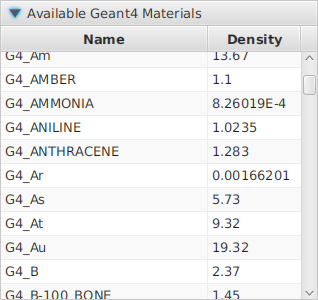
Available Geant4 materials for the material assignment are displayed in the Geant4 materials panel, on the bottom left of the perspective.
When clicking on the title, the pane is expanded to show the list of materials and their associated density. By clicking on the header of the column, it is possible to sort the materials.
Material editor
The material editor is separated in two main parts: the first one on the top is the same for every material allows defining the name, the density and other properties of the material. Below, a section enables to define the composition of the material and changes depending on the type of chosen material.
Screenshot below shows the editor for a simple “atom” material. On the top, it is possible to fill in the material name, the density in g/cm3 and optional properties before choosing the type of material.
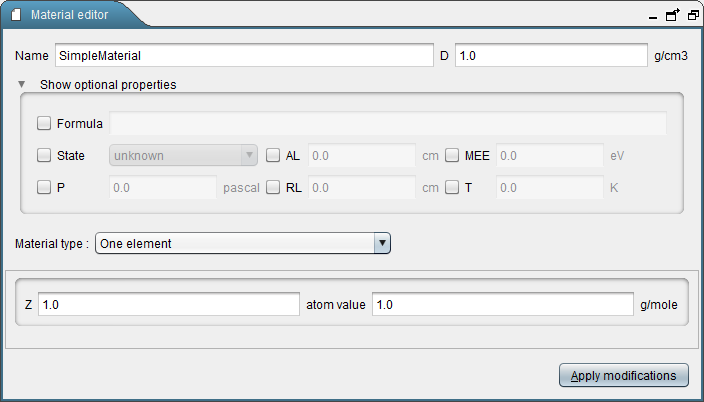
General optional material properties can be set by clicking on Show optional properties and are:
-
The choice of the atomic number Z (when atom is not selected);
-
The formula;
-
The state (liquid, solid, gaseous);
-
The absorption length (AL);
-
The mean excitation energy (MEE);
-
The pressure (P);
-
The radiation length (RL);
-
The temperature (T).
The user can then choose a material type.
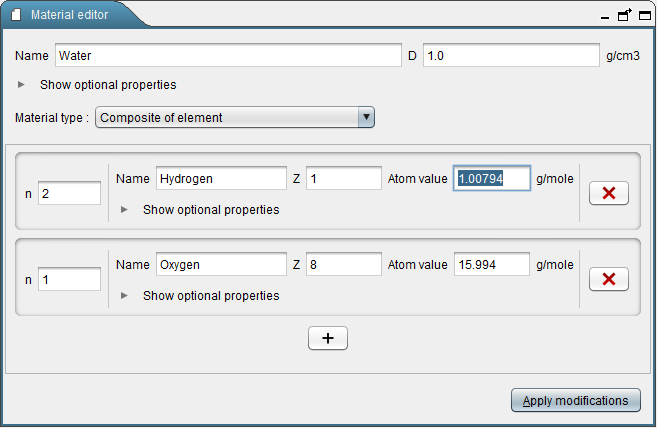
Screenshot above shows the material editor for a composition of elements.
These elements are similar to atom shown previously but can have additional meta-data attached to them using the Show optional properties button. The number of each element is chosen on the left with the “n” field. It is easy to add and remove elements just by clicking on the  button and
  respectively.
It is possible to define material with isotopes instead of elements. In this case each element is made of fractions of isotopes.
Also, it is possible to define a material with fractions (percentage between 0 and 1) of elements/isotopes instead of compositions.
To apply the modifications, it is necessary to click on the Apply modifications button.